> ## Documentation Index
> Fetch the complete documentation index at: https://bunny.net/docs/llms.txt
> Use this file to discover all available pages before exploring further.
# Enable Offloader
> Turn on Bunny Offloader in the bunny.net WordPress plugin to automatically transfer media files to Bunny Storage.
**Bunny Offloader** automatically transfers media files to Bunny Storage, enabling multi-region replication, near-unlimited scalability, and up to 5x faster performance compared to traditional delivery methods.
Offloader requires Bunny DNS with CDN Acceleration enabled. If you haven't set this up yet, follow [Enable Bunny DNS and CDN Acceleration](/docs/integrations/wordpress/dns) first.
## Enable the Offloader
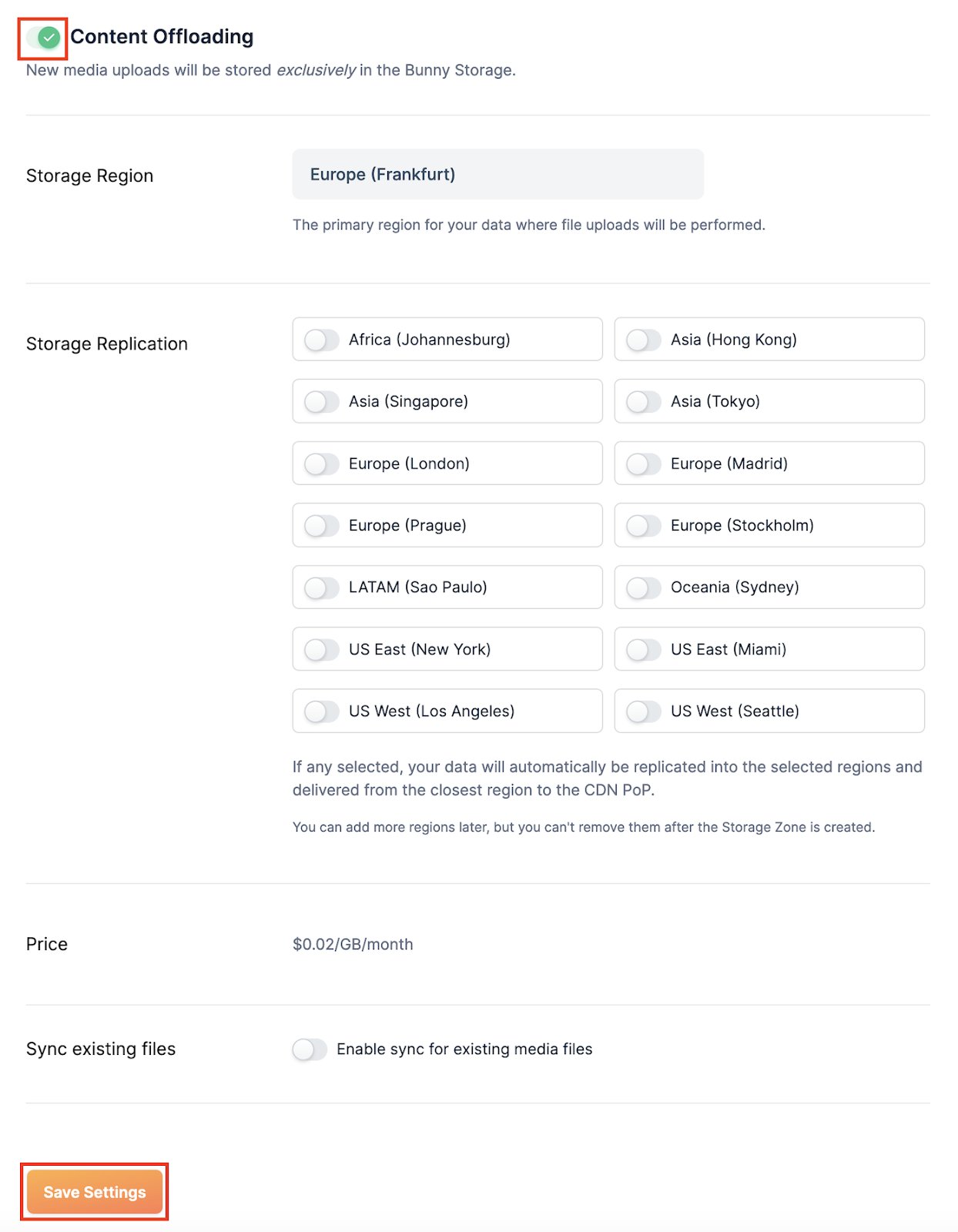
In your WordPress Admin Panel, navigate to **bunny.net → Offloader**. Toggle on **Content Offloading**, adjust settings to your preference, and click **Save Settings**.
 You can monitor offloaded content through the Offloader dashboard.